
School administrators
What should I do when an account is blocked or a password is forgotten?
Written by the TestFLE team.
In short
After five wrong passwords, TestFLE imposes a wait of 30 seconds to 15 minutes, which lifts on its own: there is nothing to unblock. For a forgotten password, click “Reset password” on the student’s or the teacher’s sheet; the person then goes through “First connection” again.
Who this is for, and what you need first
- Who this is for
- School administrators with a student, a teacher or another administrator who can no longer sign in.
- What you need first
- The exact message the person sees on the sign-in screen.
- A way to let them know, because TestFLE sends no email.
The steps for a student
- In the sidebar, open “Students”.
- Click the student’s row: the “Student details” sheet opens.
- At the bottom of the sheet, click “Reset password”.
- A window from your browser asks the question (“Allow”, the student’s name, then “to reset their password?”). Confirm with its accept button. To back out, decline: nothing is changed.
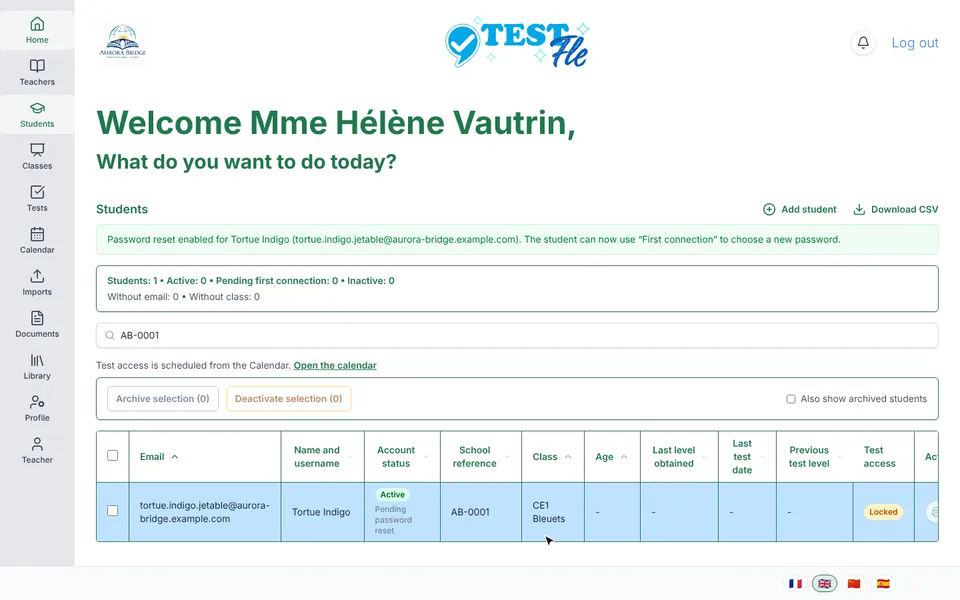
- The sheet closes. A green message appears above the list. It names the student by their username, followed by their email address in brackets: “Password reset enabled for (the student). The student can now use “First connection” to choose a new password.”
- Let the student or their family know, as the next section explains.
The window in step 4 is not a TestFLE window: it belongs to the browser, which shows the site’s domain name. Its buttons carry your browser’s own words, often “OK” and “Cancel”.
The steps for a teacher or an administrator
The actions are the same, from “Teachers”: click the person’s row, then, at the bottom of the “Teacher details” sheet, click “Reset password”. The browser window then asks: “Allow this account to reset its password? It will use “First connection” to choose a new one.” After you confirm, the green message names the person, for example “Mme Claire Delorme”: “Password reset enabled for (the person). The account can now use “First connection” to choose a new password.”
Administrators appear in the same list, since an administrator is a teacher who has administrator status.
What you need to tell the person
TestFLE displays no password and sends no email: it is up to you to let the person know. They then follow three steps.
- Open the school’s sign-in screen and click “First connection”.
- Prove that the account really is theirs. A student enters their email address and their school reference. A teacher or an administrator chooses “I am a teacher or administrator”, then enters their email address and their last name.
- Choose a new password and confirm it.
A student can leave the “Username” field empty: they keep their username. How do I sign in for the first time? describes the screen step by step, and What should I do if my child has forgotten their password? is the article to give to families.
Going further
Understanding the settings and special cases
Is the account blocked?
Most often, no. After five wrong passwords in a row for the same identifier, TestFLE closes sign-in for 30 seconds. Each further failure doubles the wait: 1 minute at the sixth failure, 2 at the seventh, 4 at the eighth, 8 at the ninth, then 15 minutes at the tenth, which is the maximum.
The wait lifts on its own, with nothing for you to do. No administration screen can lift it, and a reset does not shorten it. During the wait, even the right password is refused, with the message “Too many failed login attempts. Please try again later.” This message does not give the time remaining. Attempts made during the wait do not extend it, failures more than an hour old are forgotten, and a successful sign-in sets the counter back to zero.
So the advice to give is to wait a few minutes without typing anything, then to try once, calmly. Why is my child’s sign-in refused? explains the wait from the family’s side.
Which message, which cause?
Read the exact message the person sees, then look at the account in “Students” or “Teachers”.
- “Incorrect identifier or password.” This message covers a wrong password, but also an account that was never activated and an archived account. Look at the account’s state in the list: the mention “Pending first connection” means the person must first activate their account, and the “Archived” badge (visible with the “Also show archived students” or “Also show archived teachers” box) means the account has been removed.
- “Please create a new password with First connection.” You have reset the account, and the person has not yet chosen their new password. There is nothing for you to do: this message tells them what to do next.
- “Too many failed login attempts. Please try again later.” This is the wait described above.
- “This information does not match an account awaiting activation. Check each field and try again.” The person gets it on the “First connection” screen. Their email address, their school reference (for a student) or their last name (for staff) does not match the sheet, or the account is already activated. Compare with the sheet. If the account is already activated and the person has forgotten their password, reset it.
A deactivated student is not refused: they sign in and read their results, but tests are closed to them. How do I deactivate or archive a student, a teacher or a class? describes their screen.
What the reset changes
As soon as you confirm, three things change.
- The old password no longer works, even if the person remembers it in the meantime.
- Their open sessions are closed, on all their devices.
- Their account goes back to “pending”: the list shows “Pending password reset” under its state. Normal sign-in stays refused until they have gone through “First connection” again.
Their results, their history and their username do not change.
No button cancels a reset. The account returns to its normal state as soon as the person has chosen a new password with “First connection”. If they find their old password in the meantime, it is no use to them, since the reset has replaced it.
An administrator has forgotten their own password
An administrator who has forgotten their password can no longer sign in, so cannot reset their own account. Another administrator of the school opens their sheet in “Teachers” and clicks “Reset password”. The administrator concerned then goes through “First connection”, with their email address and their last name.
If you are the school’s only administrator, contact the TestFLE team.
An administrator who remembers their password can change it themselves, from the “Profile” entry in the sidebar of the administrator area: How do I change my password? describes it.
Which teachers can reset a password?
A teacher can reset the password of the students in their classes, from their own area: What should I do if a student has forgotten their password? describes this action. The password of a teacher or an administrator can only be reset from the administration area.
The school’s sign-in screen offers “Forgot your password?”, which shows a message written for the student (“Ask your teacher or your school administrator to reset your password. Then use “First connection” to choose a new one.”). It applies to staff too: the administration is who they should ask.
If the reset is refused
The refusal appears in red, at the top of the sheet, which stays open.
- TestFLE refuses the action for this account (“You are not allowed to reset this password.”).
- TestFLE cannot find the person (“Student not found.” on a student’s sheet, “Account not found.” on a teacher’s). Reload the page.
- Saving failed (“Unable to enable the password reset. Please try again.”). Try again a little later.
Related articles
- Why is my child’s sign-in refused?When sign-in is refused, a red message appears above the form: incorrect password, account not yet activated, too many attempts or school not found. After five wrong passwords, TestFLE imposes a wait that starts at 30 seconds.
- How do I change my password?The “Profile” entry in the sidebar opens a page that shows your account and the “Change password” form. It asks for your current password, then a new one of at least 12 characters, without your username or your email address.
- What should I do if my child has forgotten their password?A student cannot reset their password on their own: TestFLE sends no emails. Their teacher or the school office resets it, then the student chooses a new password with “First connection”.
- What should I do if a student has forgotten their password?To reset the password of a student in your classes, open the three-dot menu on their row in “My students”, then choose “Reset password”. The student then goes back through “First connection” to choose a new one, and their open sessions are closed.
- How do I deactivate or archive a student, a teacher or a class?Deactivating a student closes tests to them while leaving them their results; archiving a student, a teacher or a class removes them from the lists without deleting anything. “Reactivate” and “Unarchive” take you back, but unarchiving does not restore the attachments.