
School administrators
How do I change the school’s default language?
Written by the TestFLE team.
In short
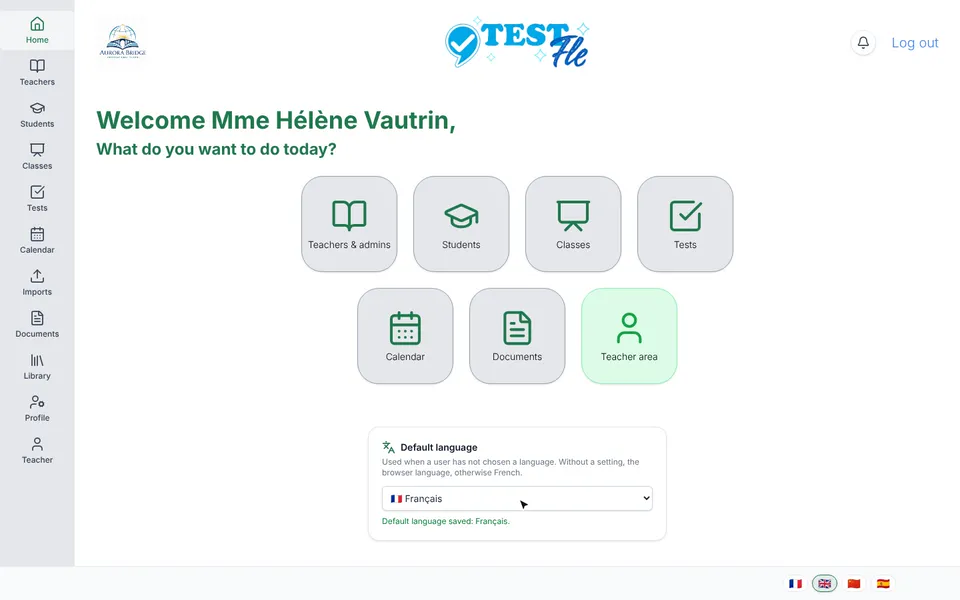
The “Default language” block, at the bottom of the home screen of the administrator area, sets the TestFLE language for anyone who has not chosen their own, from the sign-in screen onwards. The choice is saved at once, and “No setting” removes it.
Who this is for, and what you need first
- Who this is for
- School administrators.
- What you need first
- Being signed in to the administrator area.
The steps
- In the sidebar of the administrator area, click “Home”.
- Scroll down below the tiles to the “Default language” block.
- Open the drop-down list.
- Choose the language: “Français”, “English”, “中文” or “Español”. Each name is preceded by its flag and written in its own language.
- Check the green message under the list. It names the chosen language, for example “Default language saved: English.”
There is no “Validate” button: the choice goes to the server as soon as you make it. To remove the setting, choose “No setting” in the same list. The message “Default language removed: the browser language applies, otherwise French.” confirms it: the people concerned get the language of their browser back and, failing that, French.
Going further
Understanding what the default language changes
Who sees this language?
To choose a person’s display language, TestFLE tries in this order: the language saved on their account, then the one they chose with the flags in the footer on this device, then the school’s default language, then their browser’s language, and finally French. Your setting only comes third. So it concerns those who have not chosen anything yet: a student signing in for the first time, or a parent opening the school’s address on a new device.
Take a family whose browser is in English. If you set “Español”, they see the school’s sign-in screen in Spanish, even before signing in. If they then click the English flag, their choice takes precedence over yours, and it no longer changes.
The setting applies to you too, but only if you have not chosen your own language. In that case, your screen changes as soon as the setting is saved.
What the setting does not change
The language a person has already chosen stays theirs, whether they set it with the flags before signing in or after (see How do I change the language of TestFLE?). The CSV files you download keep their headers in English, whatever language is set, and so do the import templates. The test questions stay in French: TestFLE measures the level of French.
A student’s PDF report
The default language is also used to prefill the language of the PDF learning report. In the window that produces a student’s report, the language choice starts from the language saved on the student’s account; if they have none, it starts from the school’s; failing that, from French. You can change the language before producing the report: see How do I print a student’s report?.
If saving fails
Under the list, the red message “Could not save the setting. The language shown is the one still saved.” reports a failure. The list goes back by itself to the saved language, which has not changed. Reload the page, then try again.
Related articles
- What can I do in the TestFLE administrator area?The administrator area is the sidebar that opens when a teacher marked as an administrator signs in: accounts, classes, banks, calendar, documents. Two entries, “Oral tests” and “Library”, only appear if the school has chosen the matching option.
- How do I change the language of TestFLE?The four flags in the footer, present on every screen, including the sign-in screen, change the language of TestFLE: French, English, Chinese or Spanish. The choice is remembered on the device, then on the account once the student is signed in.
- How do I print a student’s report for their family?In “Students”, the printer icon in the “Actions” column produces the learning report for the family, or the detailed report “for me” or “to hand over”. The PDF is downloaded: the school hands it over itself, and the platform sends no email.