
School administrators
How do I print a student’s report for their family?
Written by the TestFLE team.
In short
In “Students”, the printer icon in the “Actions” column produces the learning report for the family, or the detailed report “for me” or “to hand over”. The PDF is downloaded: the school hands it over itself, and the platform sends no email.
Who this is for, and what you need first
- Who this is for
- School administrators who hand a student’s report to their family.
- What you need first
- A student with at least one finished test.
- The language in which the family will read the report.
The steps
- In the left-hand menu, open “Students”.
- Find the student in the list. The search accepts their email address, their username or their school reference.
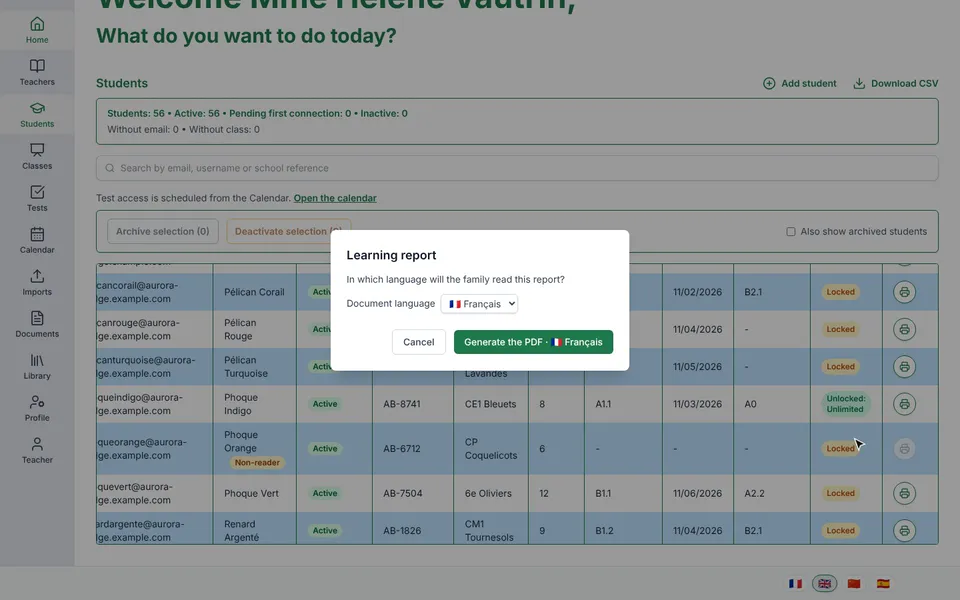
- In the “Actions” column, click the printer icon. Its tooltip says “Print reports”.
- Choose “Learning report”.
- In the “Learning report” window, read the question “In which language will the family read this report?”, then check the “Document language” list. Change the language if needed.
- Click “Generate the PDF”. The button repeats the chosen language. The browser downloads the file and the window closes.
- Hand the file to the family by the school’s usual means.
The two other documents
The printer menu offers two detailed reports, which give all the answers of the last test, skill by skill. “Detailed report, for me” is a working tool. “Detailed report, to hand over” leaves out the account of how the test went and the internal notes: it is the version that can go to the family.
These two documents download in one click, with no window and no choice of language. They come out in the language of your administrator screen. To get one of them in another language, first change the language of your screen with the flags in the footer.
Going further
Understanding the printed report
When is the printer greyed out?
The printer stays greyed out as long as the student has no finished test. Its tooltip says so: “No completed test yet.” The server only keeps finished tests in any case: a cancelled test never has an end date, so it produces no report.
The three documents always cover the student’s last finished test. You cannot choose an older test from this screen.
Which language to choose for the learning report?
The window first offers the language of the student’s account; failing that, the school’s default language (changing the default language); failing that, French. The four languages on offer are “🇫🇷 Français”, “🇬🇧 English”, “🇨🇳 中文” and “🇪🇸 Español”.
The choice is not remembered. Each time it opens, the window starts again from the student’s language. A report is written in one language only: for a family that reads another language, generate the report in that one.
What can the administrator not add to it?
The learning report generated from this screen has no comment. The teacher, however, can write one for the parents, which is printed in a box on the second page. If you would like this note, ask the teacher to generate the report from their own area (generating a PDF report for a family).
What does the report contain?
The content of the learning report, page by page, is explained in the article written for families: reading the learning report. The same three documents exist in the teacher area, and the teacher’s article describes them. This article only covers what is specific to the administrator.
What should I do if the download fails?
The message appears under the printer icon on the student’s row. For the learning report, it also appears in the window, which stays open: you can try again without starting over.
- Your account is not allowed to download this report (“You are not allowed to download this report.”).
- The student has no finished test (“No completed test available for this student.”).
- The test’s bank was deleted by a reset (“Question bank deleted, answers unavailable: this test’s question-by-question detail was deleted with its bank; the level and score remain available.”). This refusal comes from the detailed reports, which need the questions.
- Any other failure (“Unable to download the PDF. Please try again.”). Try again in a moment.
What happens to the file?
The PDF is downloaded to your device, and nothing else happens. The platform sends neither an email nor a link to the family, and a student cannot generate their report from their own area: it is up to the school to hand over the file.
Related articles
- How do I generate a PDF report for a family?The learning report is a three-page PDF, generated from “My students” or from the student’s sheet, in the language of your choice. The platform sends no email: you download the PDF and hand it to the family yourself.
- How do I read the learning report given by the teacher?The learning report is a three-page PDF that the teacher or the school office produces after a test, then gives to you. It gives the level, the radar, the seven skills and some leads.
- How do I change the school’s default language?The “Default language” block, at the bottom of the home screen of the administrator area, sets the TestFLE language for anyone who has not chosen their own, from the sign-in screen onwards. The choice is saved at once, and “No setting” removes it.
- How do I download the list of students, teachers or classes?Each of the “Students”, “Teachers” and “Classes” screens has a “Download CSV” button; “Teachers” also offers a teacher’s list of students as PDF or CSV. The headers and values of the three CSV files stay in English, whatever the language.