
School administrators
How do I deactivate or archive a student, a teacher or a class?
Written by the TestFLE team.
In short
Deactivating a student closes tests to them while leaving them their results; archiving a student, a teacher or a class removes them from the lists without deleting anything. “Reactivate” and “Unarchive” take you back, but unarchiving does not restore the attachments.
Who this is for, and what you need first
- Who this is for
- School administrators who remove a student, a teacher or a class without losing their history.
- What you need first
- A student, a teacher or a class already created.
- For an administrator: knowing that an administrator account cannot be archived directly.
The steps to archive
- In the sidebar, open “Students”, “Teachers” or “Classes”.
- Click the row of the student, the teacher or the class: its sheet opens (“Student details”, “Teacher details” or “Class details”).
- At the bottom left of the sheet, click “Archive”.
- Read the confirmation window, which is a TestFLE window (“Archive this student?”, “Archive this teacher?” or “Archive this class?”). It says what the action detaches. Click “Archive” to confirm. “Cancel” and the Esc key close the window without changing anything.
- The sheet closes, and a green message above the list confirms the action.
To remove several people or classes at once, tick their rows, then click “Archive selection”: the number of ticked rows is shown in brackets. The confirmation window is then titled “Archive selected students?”, “Archive selected teachers?” or “Archive selected classes?”. The action is all or nothing: if a single account is refused, none is archived.
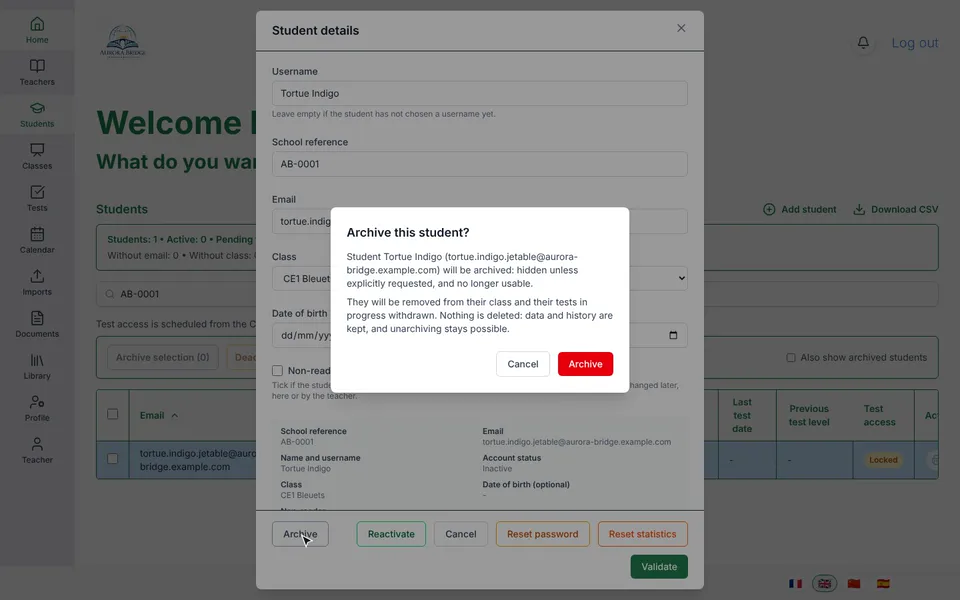
The steps to deactivate a student
Only a student can be deactivated: the sheets of a teacher and of a class have no “Deactivate” button.
- In “Students”, click the student’s row to open their sheet.
- At the bottom of the sheet, click “Deactivate”.
- Read the “Deactivate this student?” window, then click “Deactivate” to confirm. “Cancel” closes it.
With several rows ticked, “Deactivate selection” works the same way, with the “Deactivate selected students?” window.
Deactivate or archive: which one to choose?
- Deactivate a student who stays at the school but must no longer take tests. They keep their class, their openings and their assignments, they can still read their results, and reactivating gives everything back as it was.
- Archive when the person or the class leaves the school or ceases to exist. They leave the lists and can no longer be used, and unarchiving restores neither the class, nor the teams, nor the assignments.
In both cases, nothing is deleted. The “Students”, “Teachers” and “Classes” lists hide archived items by default: tick “Also show archived students”, “Also show archived teachers” or “Also show archived classes” to see them. They appear greyed out, with the “Archived” badge.
Going back
- Reactivating a deactivated student: “Reactivate”, on their sheet, with no confirmation window. “Reactivate selection” does the same for several students.
- Unarchiving: first tick the list’s “Also show archived …” box, open the sheet of the archived item, then click “Unarchive”. Here again, there is no confirmation window. After a selection, “Unarchive selection” does the same.
Resetting a student’s statistics
This action does not remove the student: it erases their tests. It is for repairing a mistake, for example a test taken by another child on this account. Only an administrator can do it.
- In “Students”, click the student’s row to open their sheet.
- At the bottom of the sheet, click the orange “Reset statistics” button.
- Read the browser window: “Confirm resetting the statistics? This student’s entire test history will be deleted, and their last level obtained will be erased. This is irreversible.”
- To back out, click “Cancel”. To erase, click the browser’s confirmation button, often “OK”.
- The sheet closes, and a green message confirms it: “The statistics of the student have been reset: their entire test history has been deleted.”
Going further
Understanding the settings and special cases
What does a deactivated student see?
They sign in as usual, and their open sessions are not closed. They can still read their results, their history, their reports, their profile and their upcoming sessions. A red banner on their Home screen tells them: “Your account is deactivated, please talk to your teacher.”, then “You can still look at your results and your history.”
However, everything that is an activity is closed to them: taking or continuing a test, Practice, cards, the library, writing tasks, reading aloud. A test in progress is cancelled straight away: it will produce no result, and the student can start a new one after being reactivated if their test access is open (see How do I cancel or end a student’s test in progress?).
The student stays visible and counted in their class, with their openings and their assignments. When reactivated, they get back the status they had before: active, or pending first connection if they had not yet activated their account.
What happens to an archived student?
The account is removed from the list and can no longer be used. Its sessions close at once, and sign-in is refused with the ordinary message for a wrong password (“Incorrect identifier or password.”). The student’s data and history are kept.
Archiving detaches the student from several things.
- Their class: they no longer have one.
- Their test in progress: it is removed and will not count in any result.
- Their individual assignments: the assignment of a test bank, their individual openings of the test and their Practice assignments are removed.
What happens to an archived teacher?
The teacher is removed from all their classes. If they were the lead teacher of one, the next co-teacher becomes the lead teacher. Their sessions close, and sign-in is refused with the same generic message (“Incorrect identifier or password.”). The students of their classes do not move.
The confirmation window warns you when a class would be left without a teacher. For one class, it says “Warning: class”, followed by its name, then “will be left without a teacher.” For several, it says “Warning:”, the number of classes, “classes will be left without a teacher:” and their names. The action is still possible: this is information, not a block. If you have the Library option, the teacher’s materials become “awaiting assignment”: see assigning the legacy of an archived teacher.
An administrator cannot be archived: their sheet shows “An administrator account cannot be archived.” in place of the button. To archive an administrator, first untick “Also admin (full access)” on their sheet, then click “Validate”. They then lose access to the administration area and their sessions close. Never do this on your own account, because you would lose the access you are using.
When unarchived, the teacher becomes active again, without the classes they had before.
What happens to an archived class?
Its students are detached from the class, without being archived: they stay active and reappear in “Students” with no class, ready to be reassigned or archived in turn. The confirmation window gives their number. Archiving also detaches the team of teachers, the bank chosen for the class, its unfinished sessions (in progress or upcoming) and its Practice assignments. Sessions already finished stay: they are part of the history of tests taken.
When unarchived, the class comes back active but empty of all its attachments. You have to put its students and its teachers back by hand: creating a class and its team and attaching a student to a class describe the actions.
What the reset erases, and what it keeps
After the reset, the student has no tests left. Their levels disappear from their Home screen and their history, and from the session reports of their class; they no longer have a report to print. Their last level is erased too: the “Last level obtained” column of the list of students and the CSV export no longer show it, and the average level of their class is recalculated without them.
The account itself does not change. The student keeps their sign-in, their class, their openings of the test and their Practice work. An individual bank assignment already used up by an erased test is not given back: redo it if the student must take the test again with this bank. The student can then take a new test as soon as their access is open.
If the action is refused
A red message appears at the top of the sheet, which stays open. Read it, then start again. For archiving by selection, nothing is archived as long as a single item causes a problem.
Related articles
- What should I do when an account is blocked or a password is forgotten?After five wrong passwords, TestFLE imposes a wait of 30 seconds to 15 minutes, which lifts on its own: there is nothing to unblock. For a forgotten password, click “Reset password” on the student’s or the teacher’s sheet; the person then goes through “First connection” again.
- How do I put a student in a class or change their class?A student is put in a class, or moved to another, from their sheet in “Students”, or by importing again a file whose “Class” column has changed. The “Classes” screen can only count its students.
- How do I create a class and choose its teachers?In “Classes”, “Add class” creates a class for which you tick one or more teachers. The class starts out locked and with no students: they are attached to it from their own sheet, and test access is scheduled afterwards.
- What happens to an archived teacher’s materials, and how do I assign them?When you archive a teacher, their materials and card decks become “awaiting assignment” in “Library”. You hand them over to another teacher or move them to the school’s materials; the students who had access to them keep it.