
Teachers
What should I do if a student has forgotten their password?
Written by the TestFLE team.
In short
To reset the password of a student in your classes, open the three-dot menu on their row in “My students”, then choose “Reset password”. The student then goes back through “First connection” to choose a new one, and their open sessions are closed.
Who this is for, and what you need first
- Who this is for
- Teachers, for the students in their classes. The right to open tests is not needed.
- What you need first
- A student enrolled in one of your classes.
- A way to tell the student or their family, because TestFLE sends no email.
The steps
- On the home page, open the “My students” tab.
- On the student’s row, click the three dots to open their menu, “Actions for” followed by their name.
- In the “Account” section, click “Reset password”.
- In the confirmation window, read the question (“Enable password reset for this student? They will use “First connection” to choose a new password.”), then click “Reset password”.
- Read the blue message above the table (“Password reset enabled. The student can now use “First connection” to choose a new password.”).
- Tell the student or their family, as the next section explains.
To back out at step 4, click “Cancel” or press the Esc key: nothing is changed.
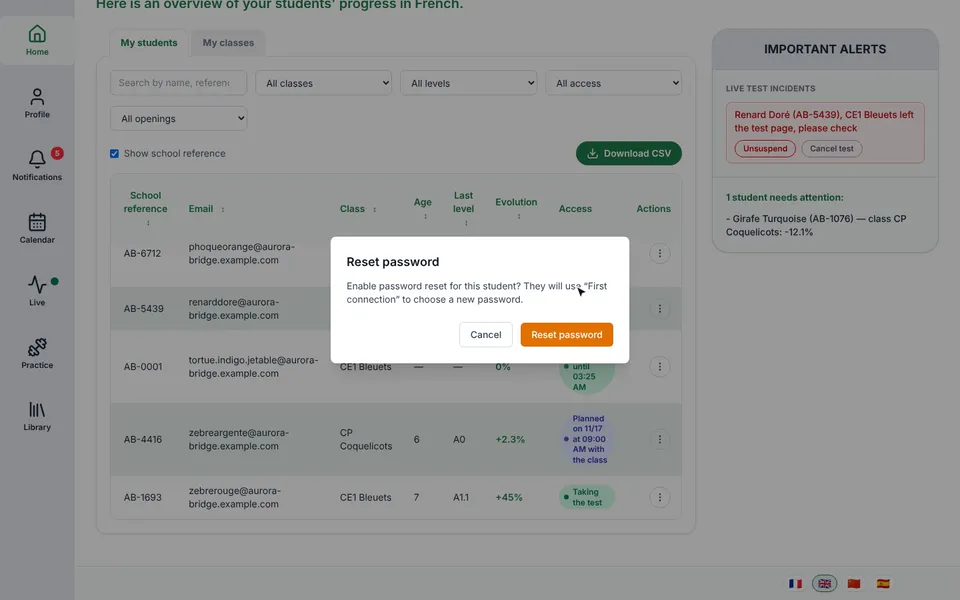
What you need to tell the student
TestFLE shows no password and sends no email: it is up to you to tell the student or their family. Ask them to follow these three steps.
- Open the school’s sign-in screen and click “First connection”.
- Enter their email address and their school reference, as the school gave them. The “Username” field can stay empty: the student keeps their username.
- Choose a new password of at least 8 characters, then confirm it.
How do I sign in for the first time? describes this screen step by step. What should I do if my child has forgotten their password? is the article to give to families.
Going further
Understanding the reset
What does the action change for the student?
As soon as you confirm, three things change.
- The old password no longer works, even if the student remembers it in the meantime.
- Their open sessions are closed, on all their devices.
- Their account goes back to “pending”. Until they have done the “First connection” again, normal sign-in is refused with a message that tells them what to do (“Please create a new password with First connection.”).
Their results, their history and their username do not change. The glossary defines what a pending account is.
How do I go back?
The teacher area has no button to cancel a reset. The account returns to its normal state as soon as the student has chosen a new password with “First connection”. The “My students” table shows no particular sign for a pending account: if you are unsure, ask the student whether they have done their first connection again.
Which students can you reset?
Only those in your classes. The action is available even if your school’s administrator has not entrusted you with opening tests. It only concerns students: the password of a teacher or an administrator is reset from the school’s administration area, as How do I change my password or the screen language? explains.
If the reset is refused
The refusal appears in the same blue message, above the table.
- TestFLE refuses the action for this student (“You are not allowed to reset this password.”). Check that they do belong to one of your classes.
- TestFLE cannot find the student (“Student not found.”). Reload the home page.
- The server could not record the action (“Unable to enable password reset. Please try again.”). Try again a little later.
Related articles
- What should I do if my child has forgotten their password?A student cannot reset their password on their own: TestFLE sends no emails. Their teacher or the school office resets it, then the student chooses a new password with “First connection”.
- How do I sign in for the first time?A student activates their account themselves, with “First connection” on their school’s sign-in screen. They enter the email address and the school reference given by the school, then choose their username and a password of at least 8 characters.
- How do I find a student and read the Access column?In the “My students” tab of the home page, search for a student by name, reference, email or class, then filter the list. The “Access” column says in one sentence what the student can do with the test: “Can take the test”, “Blocked”, “Absent” or “Nothing planned”.