
Teachers
What should I do if a student is blocked during the test?
Written by the TestFLE team.
In short
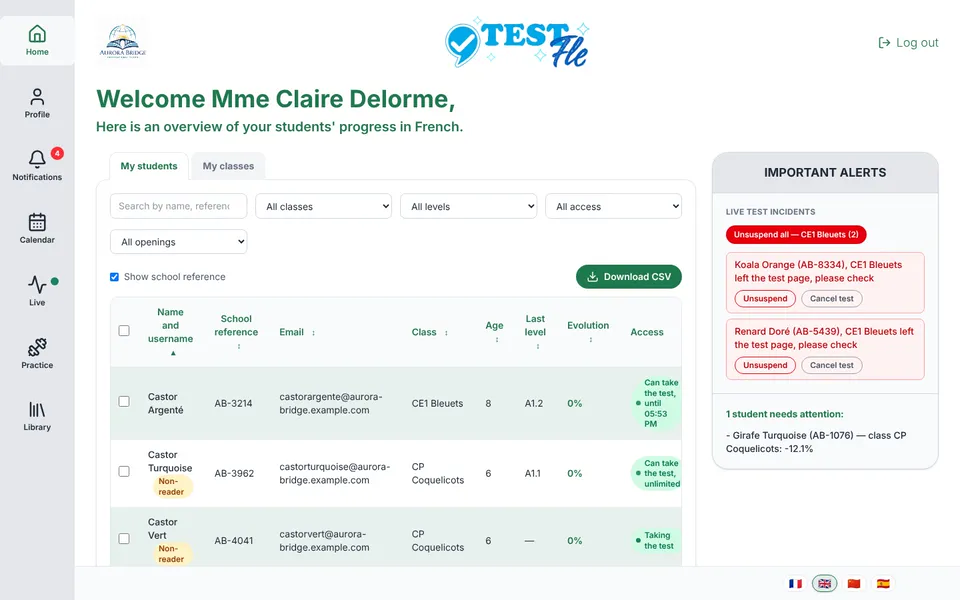
In person, a student who leaves the test page has their test blocked, and only the teacher can unblock it. Click “Unsuspend” in the incidents on the home page, in the live view or in the student’s menu; without the right to open tests, only the home page offers it.
Who this is for, and what you need first
- Who this is for
- Teachers with a student who, in person, can no longer continue their test after leaving the page.
- What you need first
- A test in progress, opened “In person”, whose student has left the page.
The steps
- Find the student. On “Home”, the “Important alerts” column contains the “Live test incidents” block. A red row there gives the student’s name, reference and class, followed by “left the test page, please check”. On the “Live” page, their state is “Blocked”.
- Go and see the student and check that they are ready to resume: the test starts again as soon as you unblock it.
- Click “Unsuspend”, on the right of the row.
- Wait a few seconds. The row disappears from the list, and the “Your test is paused.” screen goes away on its own on the student’s device, without them having to do anything.
Once the student is back on the page, the row shows in brackets how long they were away, for example “away 3min 05s”. The block updates every five seconds, and only while the TestFLE tab is displayed.
The three places where you can unblock
- The home page. The “Unsuspend” button is on the right of each red row in the “Live test incidents” block. While the action is running, it shows “Unsuspending…”.
- The live view. The “Live” entry in the sidebar appears thirty minutes before the start of a class session or a one-time attempt, and disappears thirty minutes after its end. On the student’s row, the “Actions” column offers “Unsuspend”; the “To handle now” block, on the right, has the same button. The page of a session opened with the “Open the session” link in a notification also offers this button.
- The student’s menu. In “My students”, click the three dots on their row, then, under “Actions for” followed by their name, in the “Test in progress” section, click “Unfreeze the suspended attempt”. For a blocked student, this button is the menu’s solid button.
Without the right to open tests, which the administrator can remove, only the home page offers “Unsuspend”: the live view shows no action, and the student’s menu has no “Test in progress” section.
Several students blocked in the same class
When at least two students in the same class are blocked, a red button appears at the top of the “Live test incidents” block: “Unsuspend all”, followed by the class name and, in brackets, the number of students. It lifts all the class’s blocks at once. If Phoque Indigo and Castor Turquoise, from CE1 Bleuets, leave the page at the same time, the button therefore shows the class CE1 Bleuets and the number 2.
With only one student blocked, the button does not exist: use “Unsuspend” on their row.
Going further
Understanding blocking
Why a test gets blocked
Blocking is automatic and only applies to the “In person” setting. There is no button to block or pause a student’s test. As soon as the student leaves the test page, their screen shows “Your test is paused.”, then “Please call your teacher.” and “Your test will continue here as soon as your teacher restarts it. Nothing is lost.” The word “blocked” is the one on your screen, the word “paused” is the student’s. The paused test describes their point of view and what counts as a page exit.
For a student whose test is set to “Remote”, nothing is blocked: their exit is only counted, for example “2 exits” next to their state in the live view. If the pause screen appears for a student working at home, the test was not opened “Remote”. Unblock them: a test already started keeps the setting it started with. For the next tests, choose “Remote” when you open them. Taking the test at home explains the student’s side.
How long the block lasts
The block lasts until you act. Nothing lifts it before then: not reloading the page, not signing in again, not the student starting the test again. It does not close by itself either, whereas an ordinary test left for twenty-four hours with no activity is closed as cancelled.
There is one exception in precise mode, in a class session: at the session’s end time, the test is ended automatically, blocked or not. With at least fifteen answers, the test is published, and the global level appears if their answers are enough to compute it; otherwise, the report shows “Not computable”. The block does not push back the session’s end time.
Time during the block
In lightning mode, the time spent blocked is not deducted from the test’s thirty-five minutes. Take Phoque Indigo, who leaves the page twenty minutes into the test and stays blocked for ten minutes. Once unblocked, they have fifteen minutes left, as if they had never been interrupted.
What unblocking changes, and what it does not undo
Unblocking gives the test back to the student where it stopped, with none of their answers lost. The action also resolves the incident: the red row disappears from the home page.
No button blocks the test again. If the student leaves the page again, the test is blocked again and a new row appears. Each exit stays counted in the live view, which lets you spot a student who leaves often.
If the student cannot resume
If the student’s device has broken down or the student has left, you have two other actions. You can cancel their test, which then produces no result, or end it to compute their level from the answers already given. Each row of the “Live test incidents” block offers “Cancel test” next to “Unsuspend”. Cancelling or ending a student’s test describes the two actions and their consequences.
A call from the student is not a block
The student’s blue “Call my teacher” button blocks nothing. It adds to the incidents block a row saying that the student needs help, with an “Acknowledge” button. In the live view, the student’s state becomes “Called for help”. This button only removes the call from the list and lets the student call again; the test itself continues all that time.
Practice attempts
A blocked Practice attempt appears in the same block, with the “Practice” badge. Each one is unblocked individually with its own “Unsuspend” button: “Unsuspend all” does not apply to them. This feature is part of the Practice option and only appears if your school has chosen it.
If unblocking fails
A red message then appears under the list, depending on the button used.
- A blocked test, from the home page: “Could not unsuspend this test. Please try again.”
- The class button: “Could not unsuspend this class. Please try again.”
- A Practice attempt: “Could not unsuspend this practice test. Please try again.”
- The student’s menu: “Unable to unfreeze this attempt. Please try again.”
- The live view: “The action did not go through.”, followed by the reason given by the server.
In every case, click the button again. If the message comes back, reload the page to read the real state of the test.
Related articles
- Why is my child’s test paused?In class, a student who leaves the test page sees the “Your test is paused.” screen appear, and only their teacher can restart the test. The same question then comes back, with the time that was left and all the answers already given.
- How do I follow students live while they take the test?The “What is happening now” page shows where each student in a class session or a one-time attempt stands, and the incidents to handle. You open it from the “Live” entry in the sidebar, visible thirty minutes before the session starts and thirty minutes after it ends.
- How do I cancel or end a student’s test in progress?Cancelling a student’s test in progress produces no result and keeps their attempt; ending it with at least fifteen answers publishes the test and uses up the attempt, but the global level may be missing. “Cancel test” is in the live view, on the home page and in the student’s menu; “End the test”, in the live view and on the session page.
- Which settings should I choose: lightning or precise, in person or remote?The mode sets the timer: in lightning mode, one minute per question and 35 minutes at most; in precise mode, no question is timed. The setting decides what happens when the student leaves the page: choose “Remote” for a student who takes the test at home.