
Teachers
How do I declare a student a non-reader and what does this setting change?
Written by the TestFLE team.
In short
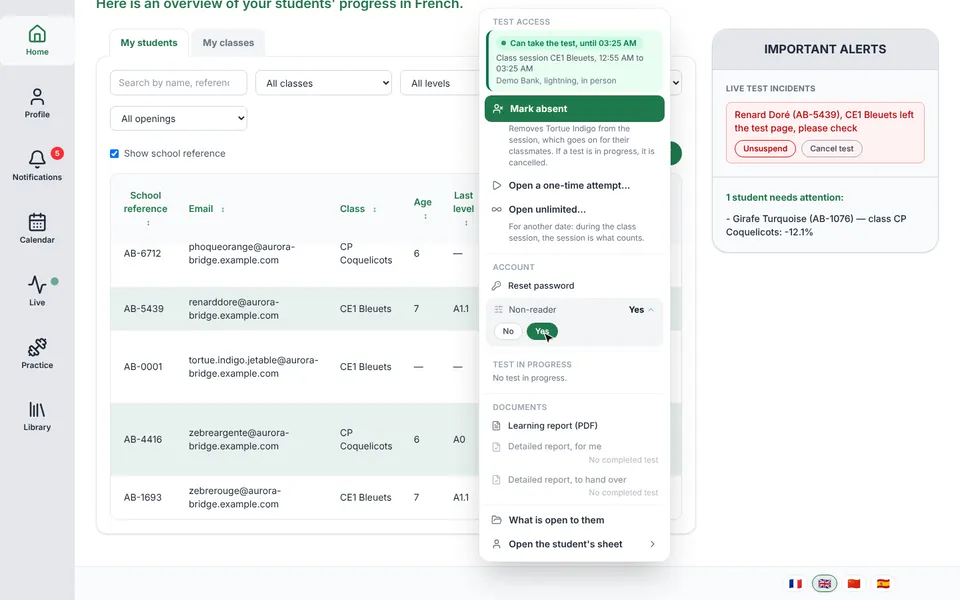
For a child who cannot read yet, open their three-dot menu in “My students” and set “Non-reader” to “Yes”: they will take the no-reading form of the test. The setting applies from the next test and can be undone at any time by going back to “No”.
Who this is for, and what you need first
- Who this is for
- The teachers of a class and school administrators. The right to open tests is not needed.
- What you need first
- A student enrolled in one of your classes.
The steps
- On the home page, open the “My students” tab.
- On the child’s row, click the three dots to open their menu, “Actions for” followed by their name.
- In the “Account” section, click the “Non-reader” row. It shows its current value, “No” by default.
- Click “Yes”.
- Check the “Non-reader” badge that is added next to the student’s name, in the table.
The setting is saved as soon as you click “Yes”, with no confirmation window. To undo it, open the “Non-reader” row again and click “No”: the badge disappears.
Who can do it, and from which test
The teacher of the student’s class can declare a student a non-reader, and so can the school’s administrator. You do not need the right to open tests: it is often the teacher who notices in class that a child cannot read yet.
The setting applies to the next test the student starts. A test already started keeps the form it had at the beginning, and the results of a test already taken do not change.
Going further
Understanding the settings and special cases
What does this setting change for the student?
A student declared a non-reader takes a form of the test with no reading part. For them, the screen stays the same: only the questions change, with questions that can be answered without reading. How does the test work for a child who cannot read yet? describes what the family sees.
The test can also choose this form by itself for a child the school has not marked. The declaration therefore serves to impose it from the start, for a child you know to be a non-reader. For the definition of the word, see the glossary.
What do the results say?
Reading comprehension is not assessed, since it requires reading. Grammar and conjugation are assessed orally, on the marks that can be heard. The results rest on few questions, and some axes are therefore indicative.
In the student’s sheet, three signs show this.
- The title of the sheet carries the note “Non-reader”.
- The level line is headed “Listening comprehension level (CEFR scale)”, instead of “French comprehension level (CEFR scale)”.
- A note begins with “No-reading form. Reading comprehension is not assessed: it requires reading.” and ends with “An absent or hatched axis is a limit of this form of the test, not a deficit of the child.” For a child you have declared, the sheet adds “No-reading form by declaration.”
The PDF report meant for the family carries the note “This test was taken without reading. Reading was not assessed. The other results are given from a small number of questions: they indicate, they do not measure yet.”
How do I go back?
Set “Non-reader” back to “No” as soon as the child can read. They will then no longer take the no-reading form automatically, from the next test onwards. A child declared a non-reader in September may be reading in June: the setting is not permanent.
Tests already taken in the no-reading form keep their note. Going back to “No” does not change them.
If the setting is not saved
The screen shows a red message at the top of the page: the sentence “The non-reader change could not be saved.”, followed by the reason given by TestFLE. The most likely reason is that the student does not belong to your classes (“This student is outside your scope.”). If the student cannot be found, the reason is “Student not found.”
Related articles
- How does the test work for a child who cannot read yet?When the school marks a child as a “Non-reader”, they take a form of the test in which every question can be done without reading. The results say so, and reading comprehension is not assessed.
- How do I find a student and read the Access column?In the “My students” tab of the home page, search for a student by name, reference, email or class, then filter the list. The “Access” column says in one sentence what the student can do with the test: “Can take the test”, “Blocked”, “Absent” or “Nothing planned”.
- How do I read a student’s report (level, radar, leads)?You read a student’s report in the “CEFR results” tab of their sheet, opened from “My students”. It gives the global level as a band, the radar of the seven skills (“measured”, “indicative” or “not assessed”) and leads to check in class.
- How do I generate a PDF report for a family?The learning report is a three-page PDF, generated from “My students” or from the student’s sheet, in the language of your choice. The platform sends no email: you download the PDF and hand it to the family yourself.