
Teachers
How do I schedule a test session for a class?
Written by the TestFLE team.
In short
A class session opens the TestFLE placement test to a whole class, one attempt per student, at set times. You schedule it from the “My classes” tab or from the “Calendar”, choosing the day, the times, the mode and the setting.
Who this is for, and what you need first
- Who this is for
- Teachers who have the right to open tests, and school administrators.
- What you need first
- A class of which you are the teacher.
- The right to open tests, given by your school’s administrator.
The steps
- In the sidebar, open “Home”, then the “My classes” tab.
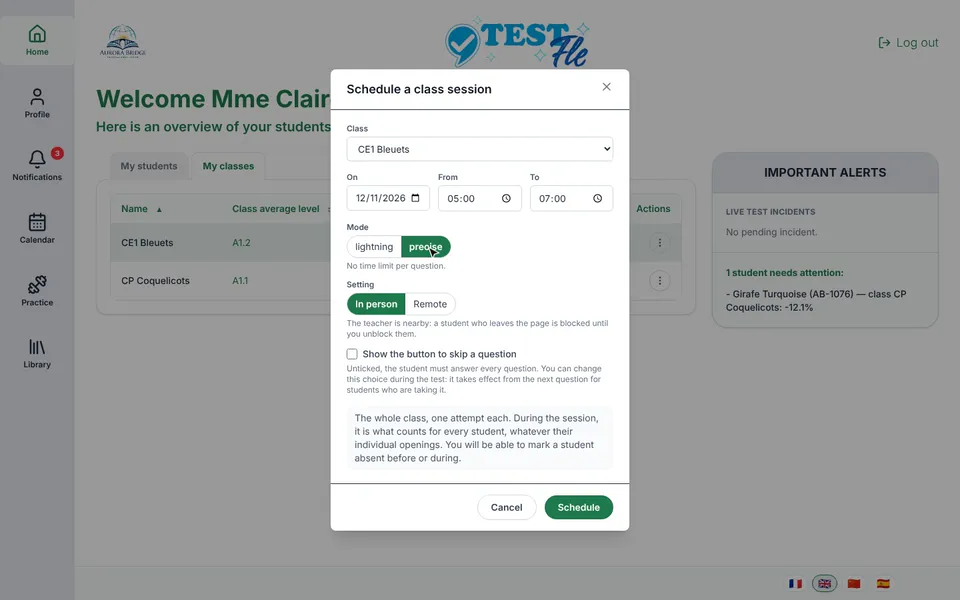
- On the row of the class, click the three dots, then “Schedule a class session…”.
- Choose the day, the start time and the end time, in your device’s time. By default, the window offers the next full hour, for two hours.
- Choose the mode: lightning or precise.
- Choose the setting: in person or remote.
- Tick “Show the button to skip a question” if students may skip a question. Leave the box empty so that they answer every question.
- Click “Schedule”.
You can also start from the “Calendar”. Its “Schedule a class session…” button opens the same window, where you then only have to choose the class. Once the session is scheduled, the row of the class shows its day and its times.
The three choices to make
- The mode. Lightning mode, offered by default, limits each question to one minute and the test to thirty-five minutes. Precise mode does not time the questions, but the test stops at the end time of the session.
- The setting. In person, the default choice, a student who leaves the page has their test blocked until you unblock them. Remotely, they resume on their own, and their exit is recorded in the live view.
- The button to skip a question. The box is unticked by default. If you tick it, a skipped question counts as a wrong answer.
Going further
Understanding the settings and special cases
Lightning or precise: which one to choose?
Lightning mode suits a test that has to fit into one lesson. When the minute of a question is up, the answer the student had selected is recorded. If they had chosen nothing, the question counts as a wrong answer.
Precise mode gives the student time to think, since no question is timed. It also asks more questions in each skill before concluding. The test therefore lasts longer, but each level rests on a larger number of answers.
Choose precise mode when time is not short, or for a student whom the timer bothers. As the test stops at the end time of the session, plan a wide enough time slot.
In person or remote?
Choose “In person” when you are in the room with the students. If one of them leaves the page, their test is blocked until you click “Unsuspend”, in the live view of the session.
Choose “Remote” when the students take the test without a teacher beside them. A student who leaves the page can then resume on their own, and the live view only shows that they left.
The button to skip a question
A skipped question counts as a wrong answer: the button therefore does not protect the result. It does, however, keep a student from staying stuck on a question they do not understand. You can change this setting during the session, and the change applies from the next question, including for students who have already started.
If a student already has an individual opening
During the session, it is the session that applies to all the students in the class, even those who have an individual opening. Take Phoque Indigo, a student in CE1 Bleuets, who can take the test at any time thanks to an unlimited opening. During their class session, they take it only once, with the settings of the session. Before and after, their unlimited opening applies again.
If a student is absent
If a student cannot take the test with their class, mark them absent, before or during the session. In the “My students” tab, click the three dots on their row, then “Mark absent”.
During this session, the student can no longer start the test, even if they have an individual opening. If they had already started it, their test is cancelled and their answers do not count. They do, however, keep their right to the test.
For them to take it later, schedule a new session for the class. You can also open an attempt for them that starts after the end of the session, with “Open a one-time attempt…” in the same menu. If you made a mistake, “Present after all” cancels the absence as long as the session is not over.
Following the session
During the session, each student starts the test from “Start test”, in their space. On your side, the “Live” entry appears in the sidebar thirty minutes before the start, and stays available until thirty minutes after the end. It shows you where each student is. Before you start, its “Project the test instructions” button also lets you present the instructions to the class.
At the end time
At the end time, no student can start the test any more. For those who have not finished, everything depends on the mode:
- in lightning mode, they finish their test, which cannot go beyond thirty-five minutes anyway;
- in precise mode, the test stops. With at least fifteen answers, the test is published, and the global level appears if their answers are enough to compute it; otherwise, the session report shows “Not computable”.
Changing, cancelling or closing a session
To act on a session, open the class menu with the three dots on its row. The choices offered depend on the moment:
- before the start, “Change the times” lets you change the day and the times, and “Cancel the session” deletes it;
- during the session, only the end time can still change. “Close now” stops the session at once, with the same effects as the end time;
- after the end, “View the session report” stays available for seven days, unless another session of the class is already planned.
Until the end of the session, “Change the times” also lets you change the mode, the setting and the button to skip a question. A student who has already started nevertheless keeps the mode and the setting they started with.
If scheduling is refused
- The window refuses a session that would start in the past (“The start is in the past: a session is scheduled ahead.”). You can make it start straight away, but not earlier.
- It also refuses two sessions of the same class that overlap (“This class already has a session over this period:”, followed by the times of the existing session). In that case, change the times, or edit the session already planned.
- The end time must come after the start time, on the same day (“The closing time must be after the opening time.”).
- The day and both times are required (“Fill in the date and time.”).