
Families and students
How do I sign in for the first time?
Written by the TestFLE team.
In short
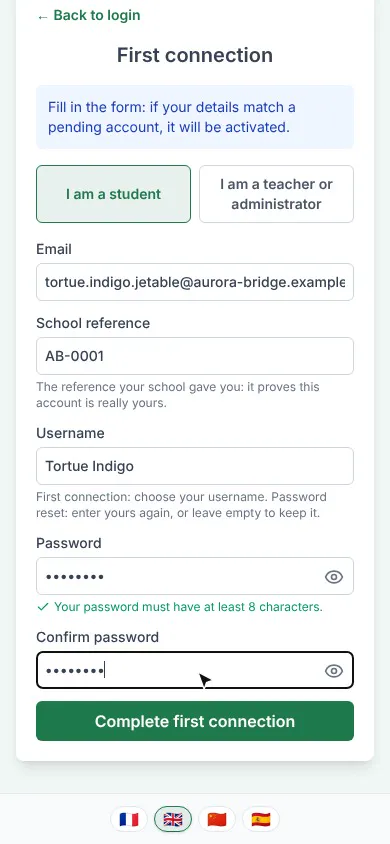
A student activates their account themselves, with “First connection” on their school’s sign-in screen. They enter the email address and the school reference given by the school, then choose their username and a password of at least 8 characters.
Who this is for, and what you need first
- Who this is for
- Students and their families, the first time an account is used, or after the school has reset the password.
- What you need first
- The school’s web address, given by the school.
- The email address of the student’s account, as the school recorded it.
- The student’s school reference, also given by the school.
The steps
- Open the school’s web address.
- If needed, choose your language with the flags at the bottom of the screen.
- Click “First connection”.
- Leave “I am a student” selected: it already is.
- In “Email”, type the address given by the school.
- In “School reference”, type the reference given by the school.
- In “Username”, choose a name, without the @ sign.
- In “Password”, choose a password of at least 8 characters. A green tick appears when it is long enough.
- In “Confirm password”, type the same password.
- Click “Complete first connection”.
- Read the green message: “Done! Your password is saved. You can now sign in.” The form disappears, and the message stays on screen for as long as you need.
- Click “Sign in”, under the message, to go back to the sign-in screen.
- Sign in with the username and the password you chose.
The username and the password
- The username. You choose it freely, as long as it does not contain the @ sign and no other student at the school has already taken it. It then appears in “Welcome, …!” on the Home screen and is used to sign in. Write it down: the profile shows it, but does not change it.
- The password. It has at least 8 characters, with no other rule: no capital letter or digit is required. Nobody at the school can read it. If your child forgets it, the school has them choose a new password (see What should I do if my child has forgotten their password?).
Going further
Understanding the settings and special cases
What does TestFLE check at the first connection?
TestFLE first looks for the account that carries the email address given. It then compares the student’s school reference, or a teacher’s last name, with what the school recorded. The reference is compared without regard to capital letters, accents or extra spaces. Copy the email address exactly as the school gave it.
The account must be awaiting activation: created by the school and never activated, or reset by the school. An account that is already activated is not concerned.
One single message for all identity errors
When the address, the reference or the account does not match, the screen always shows the same message (“This information does not match an account awaiting activation. Check each field and try again.”). It never says which field is wrong, so that nobody can guess the addresses of other accounts. The possible causes are an unknown address, a wrong reference or an account that is already activated. In that last case, just sign in as usual (see How do I sign in to TestFLE day to day?).
If the message comes back after you have checked, ask the school to check the email address and the reference recorded for the account. Why is my child’s sign-in refused? also explains the wait imposed after several failed attempts.
If the username or the password is refused
These refusals come after the identity check: they say exactly what is wrong.
- The username is empty (“Please choose a username.”).
- The username contains the @ sign (“The username must not contain ‘@’.”).
- The username is already taken: choose another one (“This username already exists in this institution.”).
- The two passwords are different: type them again so that they are identical (“Passwords do not match.”).
- The password is too short (“Password must be at least 8 characters long.”).
A refusal activates nothing: the account stays pending, and you can correct and submit again.
After a reset by the school
The panel is the same. The “Username” field becomes optional: leave it empty to keep the old username. If you type one, it must be identical to the old one (“This username does not match your account. Leave the field empty to keep your current one.”). The rest is explained in What should I do if my child has forgotten their password?.
Choosing the wrong profile at the top of the panel
The two buttons at the top only change the proof requested. A student who clicks “I am a teacher or administrator” has to type a last name, and their account is not activated. They get the identity message described above. Just go back to “I am a student”.
A teacher’s first connection
A teacher, or a school administrator, activates their account on the same screen and in the same way as a student. Only the proof changes: instead of the school reference, they give their last name.
- Open the school’s web address, then click “First connection”.
- Click “I am a teacher or administrator”.
- In “Email”, type your account’s address.
- In “Last name”, type your name, as the school recorded it.
- In “Password”, choose at least 12 characters.
- In “Confirm password”, type the same password.
- Click “Complete first connection”.
- Then sign in with your email address and this password.
Three differences from a student are worth knowing:
- The last name is compared without regard to capital letters or accents. If the administrator has not recorded it on your account, the first connection is refused until they have added it.
- The password must have at least 12 characters, and must not contain your identifier or your email address (“Password must not contain the account identifier or email address.”).
- The username does not exist for staff: the field does not appear.
Related articles
- How do I sign in to TestFLE day to day?To sign in, a student opens their school’s web address, types their username, their school reference or their email address, then their password, and clicks “Sign in”. They arrive on the Home screen, with the menu that gives access to the test, the results and the profile.
- What should I do if my child has forgotten their password?A student cannot reset their password on their own: TestFLE sends no emails. Their teacher or the school office resets it, then the student chooses a new password with “First connection”.
- Why is my child’s sign-in refused?When sign-in is refused, a red message appears above the form: incorrect password, account not yet activated, too many attempts or school not found. After five wrong passwords, TestFLE imposes a wait that starts at 30 seconds.
- How do I change the language of TestFLE?The four flags in the footer, present on every screen, including the sign-in screen, change the language of TestFLE: French, English, Chinese or Spanish. The choice is remembered on the device, then on the account once the student is signed in.