
Families and students
How do I read the teacher’s correction and revise my copy?
Written by the TestFLE team.
In short
When the teacher has corrected a writing task, the card shows “Corrected” and the assessment; “Read again” opens the correction. If the teacher reopens the copy, the “To revise” label appears: the student makes their corrections, then clicks “Submit the new version”.
Who this is for, and what you need first
- Who this is for
- Students whose writing task has been corrected, and the families who read the correction with them.
- What you need first
- The Practice option chosen by the school.
- A writing task already submitted, which the teacher has corrected and whose correction they have published.
- An active account.
The steps
- In the menu, click “Practice”.
- Scroll down to “Writing tasks”.
- Find the card marked “Corrected:” followed by an assessment, for example “Corrected: Good”.
- Click “Read again”.
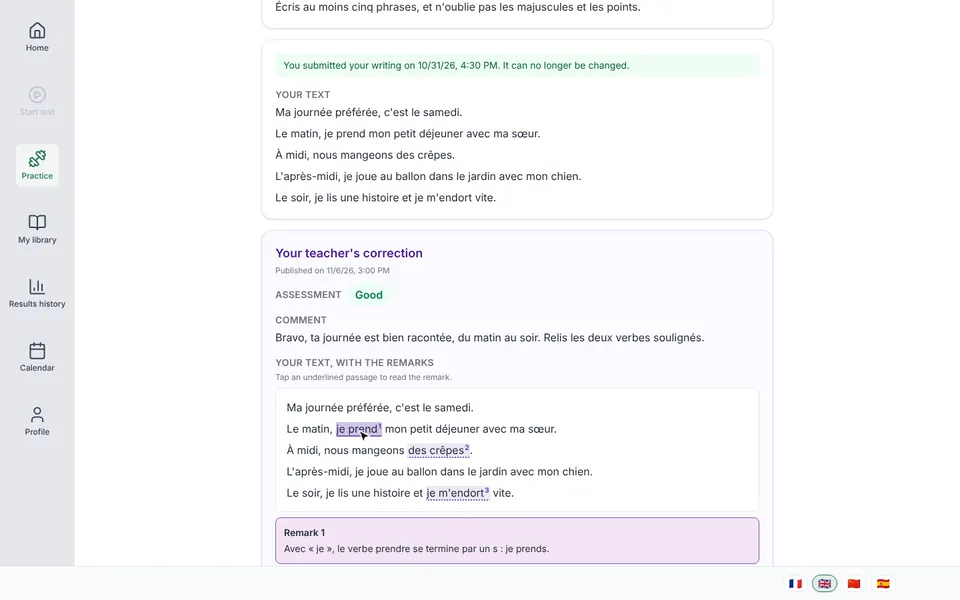
- Read “Your teacher’s correction”: first the “Assessment”, then the “Comment”.
- In “Your text, with the remarks”, click an underlined passage. The remark appears.
If the copy is handwritten
When the student has attached photos or a PDF, the correction adds “Your pages, with the remarks”. Markers are placed on the pages, at the right spot. Click a marker to read its remark. “Enlarge the page” lets you see better. When the copy has several pages, a line shows which ones carry remarks (“Remarks on: Page 1, Page 3”).
Revising your copy when the teacher reopens it
- In “Writing tasks”, find the purple “To revise” label.
- Click “Continue”.
- Read the purple message at the top of the copy.
- Correct the text. Change your photos or your PDF too if needed.
- Click “Submit the new version”.
- In the “Submit your writing?” window, click “Submit”.
Going further
Understanding the settings and special cases
When the correction appears
A correction is only visible once the teacher has published it. While they are preparing it, the card only says “Submitted”, and the student has nothing to read. The screen offers no way to ask for it. If it is slow to come, ask the teacher.
What the correction contains
The assessment replaces the mark out of 20. It takes one of four forms: “Very good”, “Good”, “OK” or “Could do better”. The comment is a free text from the teacher. The remarks are numbered: “Remark 1”, “Remark 2”… They concern a passage of the text, or a precise point on a photo or a PDF page (“on photo 2”, “on PDF page 3”).
“All the remarks” brings together the full list, folded by default. It lets you reread the remarks in order without looking for the underlined passage. Under the title, the screen shows the publication date (“Published on …”) and, if the teacher has edited the correction, the update date (“updated on …”).
What happens when the copy is reopened
The teacher can reopen a copy after publishing their correction. The student then finds their text and their files as they had submitted them. The screen says so: “Your teacher asks you to revise your copy. Your text and files are back: fix them, then submit again.” Under this message are the date of the request (“Requested on …”) and the number of the current version.
During the revision, the card carries the “To revise” label in place of the assessment. Revision stays possible even if the prompt is closed, but only for this student.
The version submitted before the revision is not lost. It is stored in “Your previous versions”, with its submission date, the date of the revision request and the correction it had received (“The correction of your version 1”). To read this block, click its title: it is folded by default.
As long as the student has not clicked “Submit the new version”, they can change their copy. The submission cannot be undone afterwards; the teacher then reads the new version and can correct it in turn.
A copy has three versions at most: so the teacher can reopen it twice. After the third version has been submitted, the correction is final.
No way to reply to a remark
The screen does not offer a way to reply to a remark or to dispute an assessment. To discuss it, talk to the teacher.
Related articles
- How do I write and submit a writing task?The student writes their task in the “Writing tasks” section of “Practice”: the text saves on its own, then “Submit” sends it to the teacher. The teacher reads and corrects by hand, with no automatic analysis.
- What is the Practice area and how does it work?Practice gathers the tests and writing tasks assigned by teachers, or opened by a library document. It opens from “Practice” in the menu and marks each test out of 20, without ever giving a level.