
Families and students
How do I take a Practice test and review my answers?
Written by the TestFLE team.
In short
To take a Practice test, open “Practice” in the menu, click “Start”, submit each answer, then click “Finish”. The screen then gives the mark out of 20, and “Review my answers” shows the correction.
Who this is for, and what you need first
- Who this is for
- Students who take a Practice test, and the families who help them finish it or read the correction.
- What you need first
- The Practice option chosen by the school.
- A test visible in the “Practice” list, assigned by a teacher or opened by a library document.
- An active account.
The steps
- In the menu, click “Practice”.
- On the test’s card, click “Start”.
- Read the question.
- Choose or write your answer.
- Click “Submit”.
- Click “Next” to move on to the next question.
- Repeat steps 3 to 6 until the last question.
- On the last question, click “Submit”, then “Finish”.
- If a browser window asks “Finish anyway?”, choose to finish. Choose to go back if you want to answer the remaining questions.
- Read your mark out of 20. To see the correction, click “Review my answers”.
What you see during the test
- At the top: the test’s title and a line such as “Question 3/12, 2 answered”. On the right, a timer appears if the test is timed. It turns red during the last minute.
- The question numbers: clicking a number opens that question. The numbers already answered change colour.
- “Submit”: the button stays greyed out as long as nothing is chosen or written.
- “Previous” and “Next”: they change question. “Previous” is greyed out on the first question.
- “Finish”: it replaces “Next” on the last question, and only there.
The test has no “Skip” button, no “Call my teacher” and no “Leave the test”. An unanswered question counts as zero.
Going further
Understanding the settings and special cases
Instant correction or deferred correction
When the test’s card does not carry the “Deferred correction” label, correction is instant. After “Submit”, the screen says “Correct!” in green or “Incorrect.” in red, and the question locks: the answer can no longer change. Clicking “Next” without “Submit” saves nothing, and the question stays unanswered.
For a question worth several points, the screen says how many points were earned (“3 words in the right place out of 4.”).
When the card carries the “Deferred correction” label, the screen only says “Answer saved.” The student can go back to a question and choose another answer as long as they have not clicked “Finish”. Moving to another question with “Next”, “Previous” or a number saves the current choice, except on a question already saved: to change its answer, click “Submit” again before moving to another question, otherwise the new choice is lost and the old answer still counts.
“Labels on a picture” questions
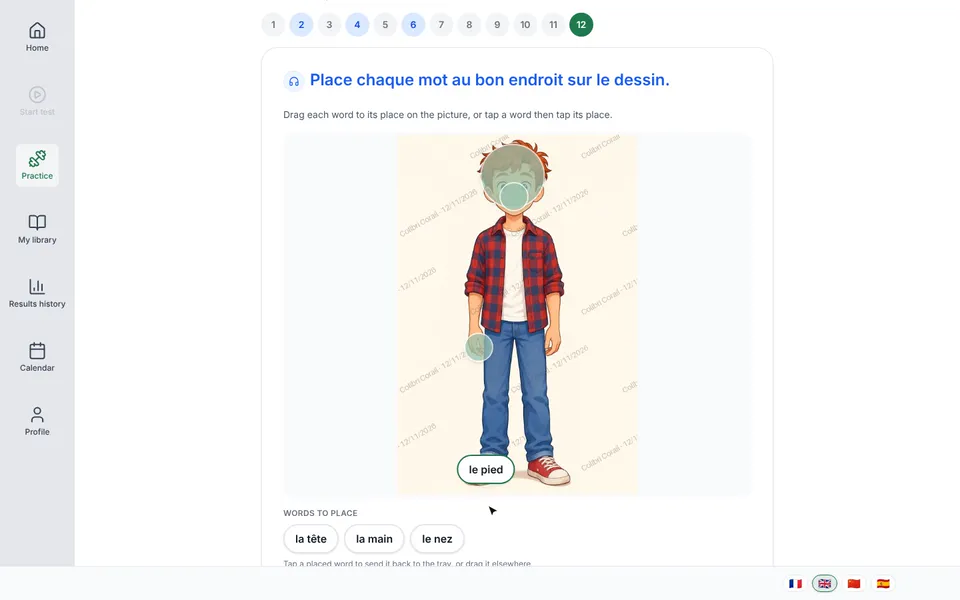
Some questions show a drawing with empty places and a stock of words to place. The screen explains what to do: “Drag each word to its place on the picture, or tap a word then tap its place.” There may be more words than places: the extra words stay in the stock. Each place filled correctly earns one point, which explains partial marks.
Finishing, and what happens to the mark
The “Finish” button only appears on the last question. To finish earlier, just click the number of the last question. If some questions are still unanswered, a browser confirmation window opens: “2 questions are unanswered. Finish anyway?” (with the number of questions left). Refusing it takes you back to the test, with nothing lost.
Once the test is finished, the mark is calculated once only. It is the points earned over the points possible, scaled to 20 and rounded to the nearest half point (12.25 becomes 12.5). The “Test finished!” screen shows the mark out of 20 and the number of correct answers (“9 correct out of 12”). When some questions are worth several points, a line also gives the points (“14 points out of 16”).
This cannot be undone. With one attempt, the test can no longer be taken again. With unlimited attempts, the student can start again with “Start”, and the new mark replaces the old one on the card.
When the time is up
In a timed test, the test ends on its own when the time is up. Answers already submitted count, the others count as zero. The time starts when you click “Start” and stops neither when the page closes nor during a pause.
Leaving the page and resuming
The test has no button for leaving. If the student closes the page or opens another section of the menu, the test stays started. The menu only locks during a proctored attempt. On the card, the “Resume” button reopens it at the first unanswered question, with the answers already submitted. A test with no time limit stays open as long as the student does not finish it.
When the test is paused
A one-attempt test that the teacher has placed under proctoring is paused if the student leaves the page. The screen then shows “Your test is paused.”, and the teacher has to restart it. This proctoring applies neither to unlimited tests nor to tests opened by a library document. The page about the paused test gives the details.
Reviewing your answers
The “Review my answers” button opens the review, which is titled “Review” followed by the test’s title. It recalls the mark, then lists each question with two columns: “Your answer” and “Correct answer”. An unanswered question carries the note “(no answer)”. A green (right), amber (partly right) or red (wrong) icon marks each question. For labels on a picture, the legend says: “Green: the right word; red: another word, or a place left empty.”
The button is on the end screen and on the test’s card, next to the last mark.
When the review is not open yet
If the teacher has assigned the test to the whole class with one attempt, the review does not open straight away. It opens at the first of these three moments: all the students in the class have finished, the test’s period is over, or the teacher has shown the corrections. In the meantime, the card and the end screen show “The review will open once the whole class has finished, when the window closes, or when your teacher shows you the corrections.” In the other cases, the review is open as soon as the test ends.
If the test is refused
These refusals mostly appear when the page stayed open while the teacher was changing the test.
- The test has been withdrawn or is no longer published (“This practice test is no longer available.”).
- The period has not started yet (“This assignment is not open yet.”).
- The period is over (“This assignment’s window has closed.”).
- A one-attempt test has already been taken (“You have already used your attempt.”).
- The document that opened the test no longer opens it (“This material no longer opens this bank to you.”), or the teacher has since assigned the test to the student (“This bank is assigned to you: go through your assignment.”).
- The test contains no questions (“This bank has no questions.”).
- An answer has already been submitted for this question with instant correction, for example from another tab (“This answer is locked.”). It can no longer change.
After one of these refusals, reload the page: the “Practice” list shows what is really available. If the test should be available, ask the teacher.
Related articles
- What is the Practice area and how does it work?Practice gathers the tests and writing tasks assigned by teachers, or opened by a library document. It opens from “Practice” in the menu and marks each test out of 20, without ever giving a level.
- Why is my child’s test paused?In class, a student who leaves the test page sees the “Your test is paused.” screen appear, and only their teacher can restart the test. The same question then comes back, with the time that was left and all the answers already given.
- How do I write and submit a writing task?The student writes their task in the “Writing tasks” section of “Practice”: the text saves on its own, then “Submit” sends it to the teacher. The teacher reads and corrects by hand, with no automatic analysis.