
Families and students
How do I view a library document?
Written by the TestFLE team.
In short
Documents that teachers share with a student are viewed from “My library”, with the “View” button. A document cannot be downloaded, and a lesson recording shows its end date.
Who this is for, and what you need first
- Who this is for
- Students with whom a teacher has shared a document, and the families who support them.
- What you need first
- The Library option chosen by the school.
- At least one document or card deck shared with the student by a teacher. Without that, the “My library” entry does not appear in the menu.
- An active account. If the account is deactivated, the “My library” entry no longer appears.
The steps
- In the menu, click “My library”.
- Look for the document in the list. Clicking a folder’s name opens or closes it.
- Click the document, or “View”.
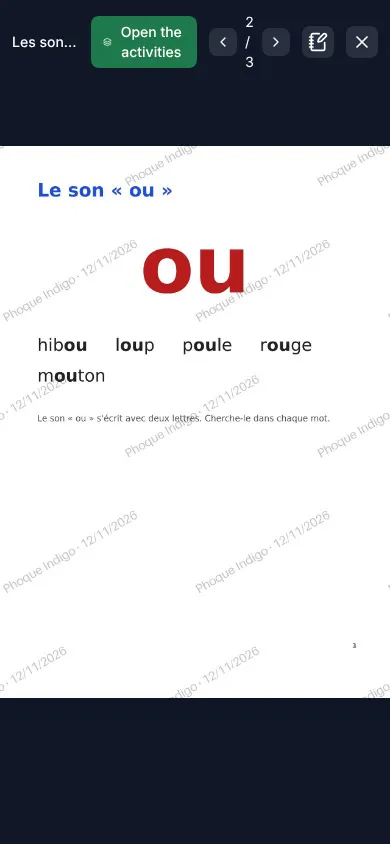
- For a PDF, click the arrows at the top of the window to turn the pages. On a phone, swipe the page with your finger.
- To close the document, click the cross at the top right.
The two arrows are named “Previous page” and “Next page”, and the page number is shown between them. On a keyboard, the arrow keys and the space bar also turn the pages.
What you see in the list
The list reproduces the original folders, all open when you arrive. Each document shows its name, its type (PDF, image, audio or video) and its size. Card decks appear in the same list (see How do I revise with cards and pictures to explore?).
Some documents are lesson recordings: their line shows “Available until”, followed by the date. During the last seven days, the line turns red with the number of days left (“3 days left”). On the last day, it shows “Last day!”.
Going further
Understanding the settings and special cases
Why a document disappears from the list
The teacher shares a document with one particular student or with their whole class. Access is checked every time the document is opened: if the student changes class, their list follows. If the teacher withdraws access, the document disappears from the list. It also closes in a window that is already open, with the message “This document is no longer available: close this window and try again from your library.” In the list, the same refusal reads “This document is no longer available.”
A lesson recording disappears as soon as its end date has passed, even before the file is deleted. The notes the student had taken stay in their export (see the page about notes).
When nothing is shared with the student any more, the “My library” entry disappears from the menu. If it was already displayed, the screen says “Nothing yet: come back when a teacher has shared a document or a card deck with you.”
Why a document cannot be downloaded
The document can only be viewed on screen. Right-click, drag and drop, and double-click selection are blocked, and the window has no download button. These blocks do not prevent a screenshot. The real protection is the watermark: the student’s name and the day’s date are embedded in the pages and the images. On a video, this text is overlaid on the picture; for a sound, it appears under the player. A screenshot therefore carries the name of the person who took it.
This protection is deliberate: the documents of a lesson do not leave the platform. Revision cards are the exception, because they can be printed.
Sounds and videos attached to a page
A PDF can carry a sound or a video on some pages, such as a song. They appear under the page, with the “Listen” and “Watch” buttons. Nothing starts on its own. An open video closes with “Close the video”, and “Pause” stops the sound or the video.
When many students are watching videos
The school can watch a limited number of videos at the same time. If the limit is reached, the screen waits and says so: “Many students from the school are watching videos right now: playback will start as soon as a slot frees up, in a few moments.” It then shows “Retrying automatically in a few seconds…”. Playback restarts on its own, with nothing to do.
The “Open the activities” button
When a document has linked activities, an “Open the activities” button is added at the top of the window. On a narrow screen, such as a phone’s, it shows only its icon (stacked sheets), without its label. The activities are the card decks linked to the document and the Practice tests it opens.
If the document has only one activity, the button opens it directly: a card deck appears over the document, a test leads to “Practice”. If it has several, a menu opens. Its title is “Your activities for this material:” (“Your cards for this material:” if it contains only decks). Each test shows its status there: “To take once”, “In progress” or “Finished”.
Nothing is compulsory: the student starts an activity when they wish and can start it again later without rereading the document.
What the teacher sees
Every opening of a document is recorded. A teacher can see, among the students in their classes, who has opened a document and when, and who has not opened it yet. They only see their own students; the school administration sees them all.
Related articles
- Can my child take notes, and who reads them?In “My library”, the student writes their notes in the “Your notes” area next to each document; they save on their own. Their teachers and the school administration can read them, and “Download all my notes” provides them as a spreadsheet.
- How do I revise with cards and pictures to explore?In “My library”, a card deck is revised with “Revise”: you flip each card, then move on to the next. A picture to explore opens with “Discover”: you touch a zone to make its word appear and hear it.
- What is the Practice area and how does it work?Practice gathers the tests and writing tasks assigned by teachers, or opened by a library document. It opens from “Practice” in the menu and marks each test out of 20, without ever giving a level.